Your Duo, counted
Count while the app is open
That’s Duo Fold Count’s main job. No Shortcuts are needed for manual logging or hinge counting while the app is open. For anyone who wants more, two optional Shortcuts are a bonus: they log folds when the app isn’t open.
This setup is optional. iOS requires you to create and enable personal automations in Shortcuts; Duo Fold Count can’t silently install them for you. Set them up once if you want this extra, or simply use the app without them.
1. Set up “Duo opened”
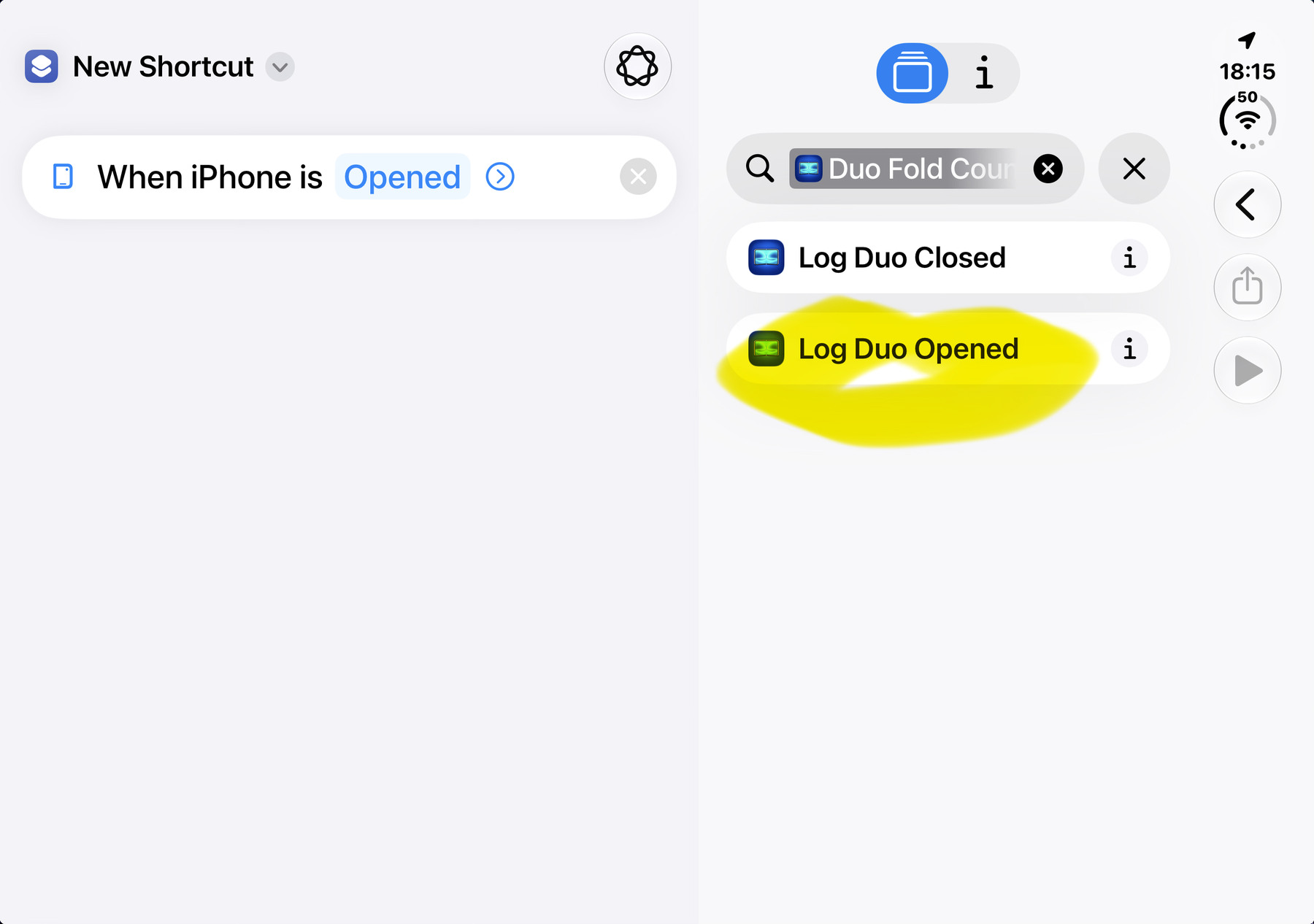
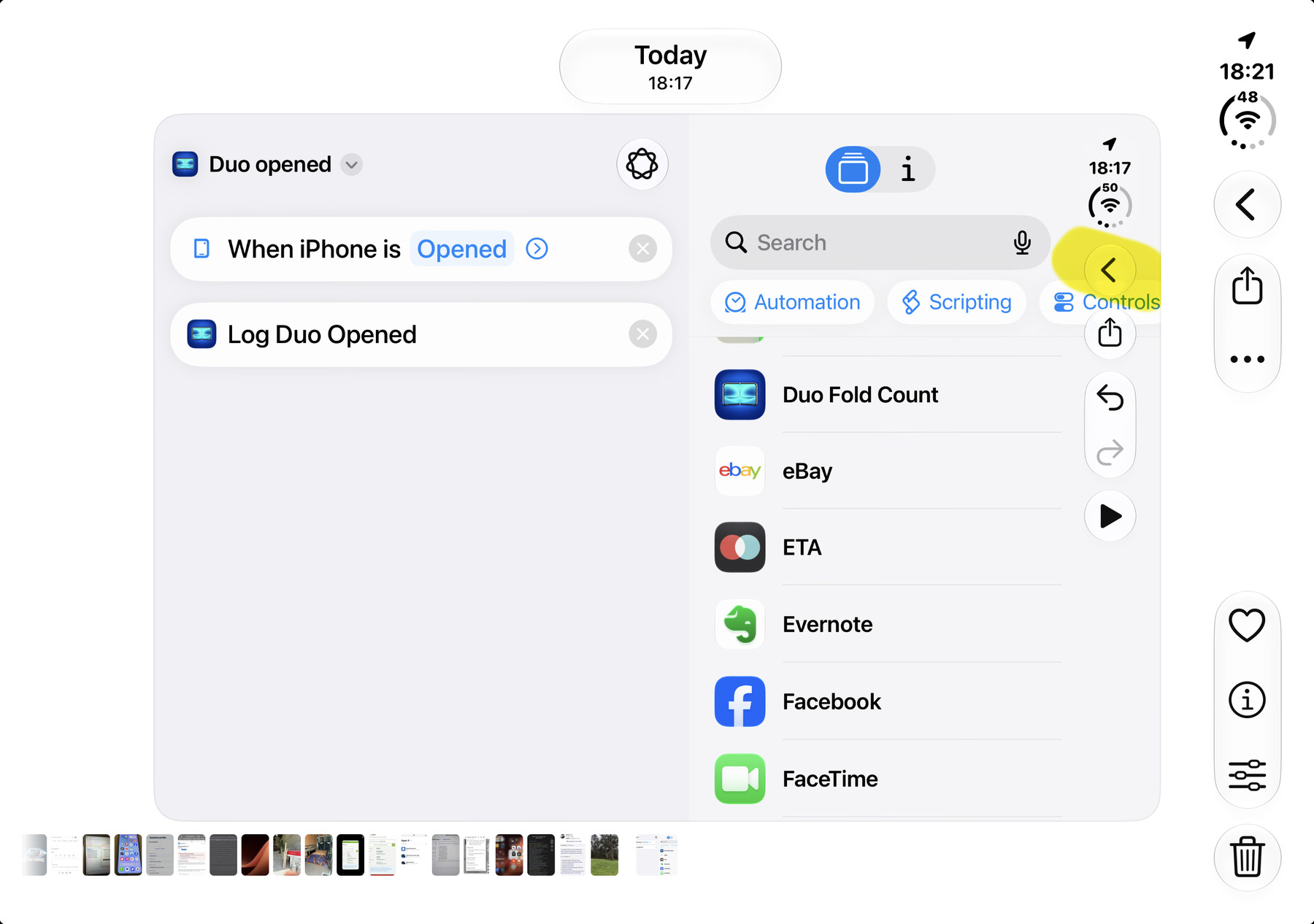
For optional background logging, create the Opened automation in Shortcuts with this action sequence. Use Log Duo Opened — not Open App.
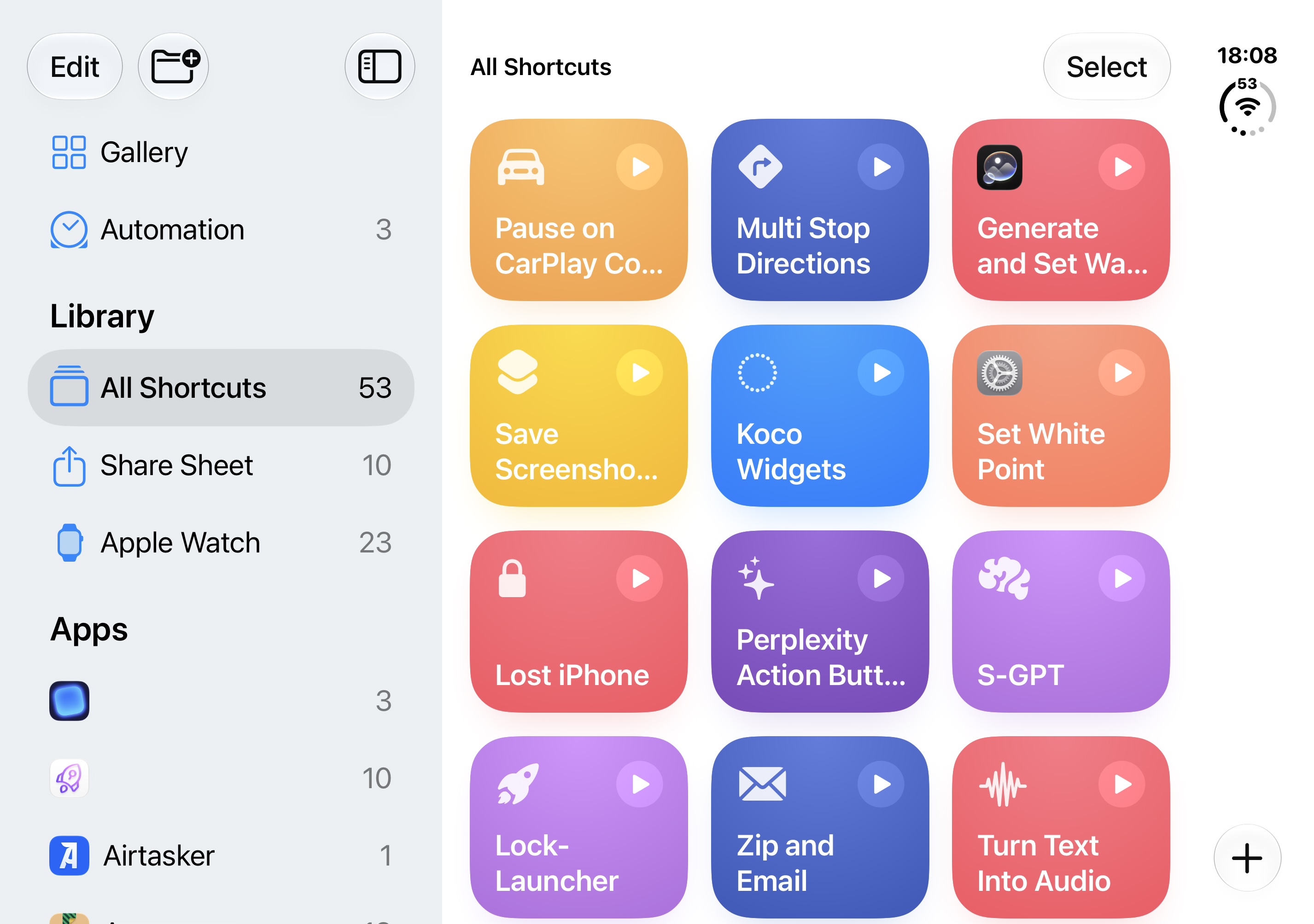
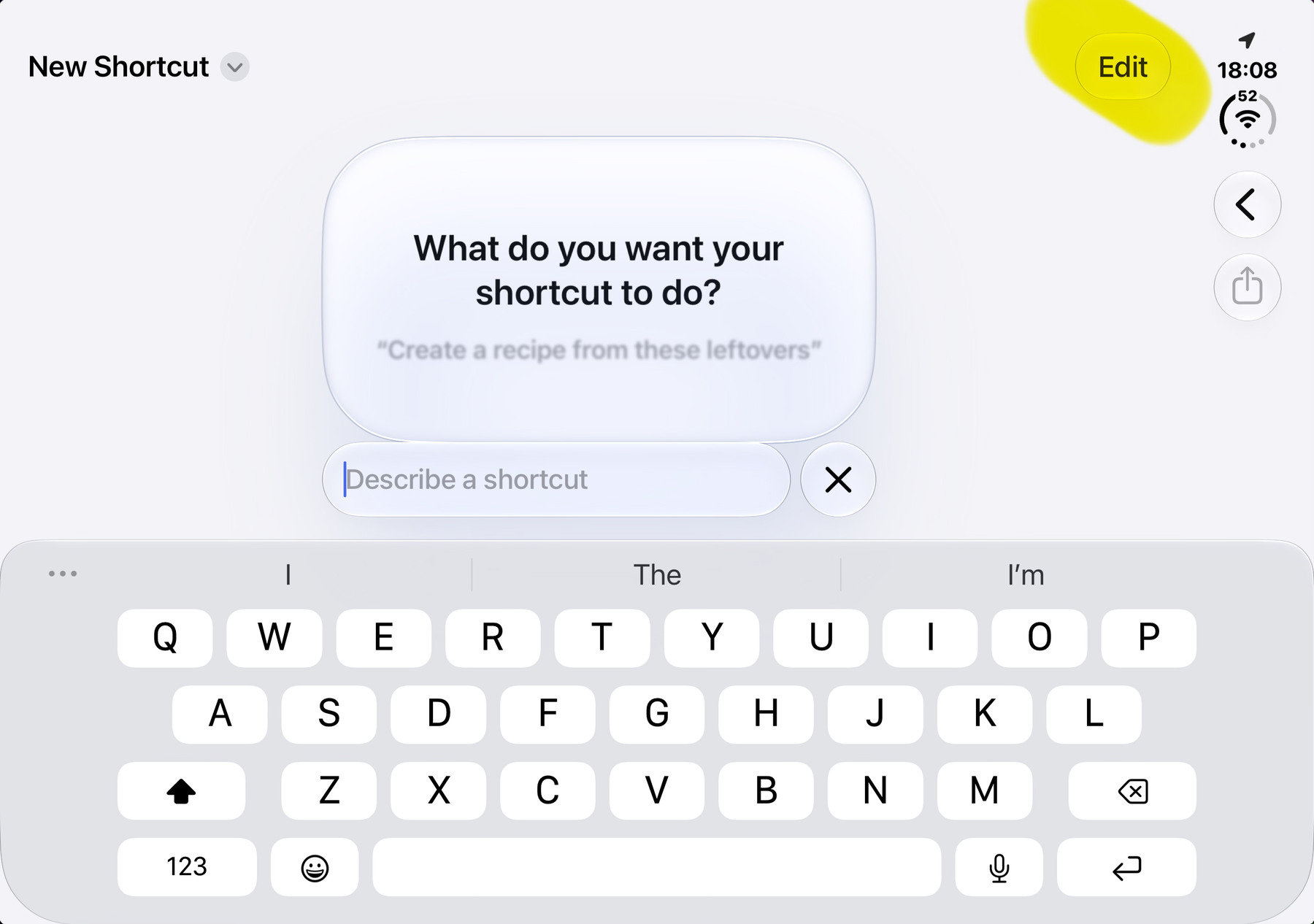
- Start in Shortcuts. Tap +, then tap Edit to begin a new shortcut.
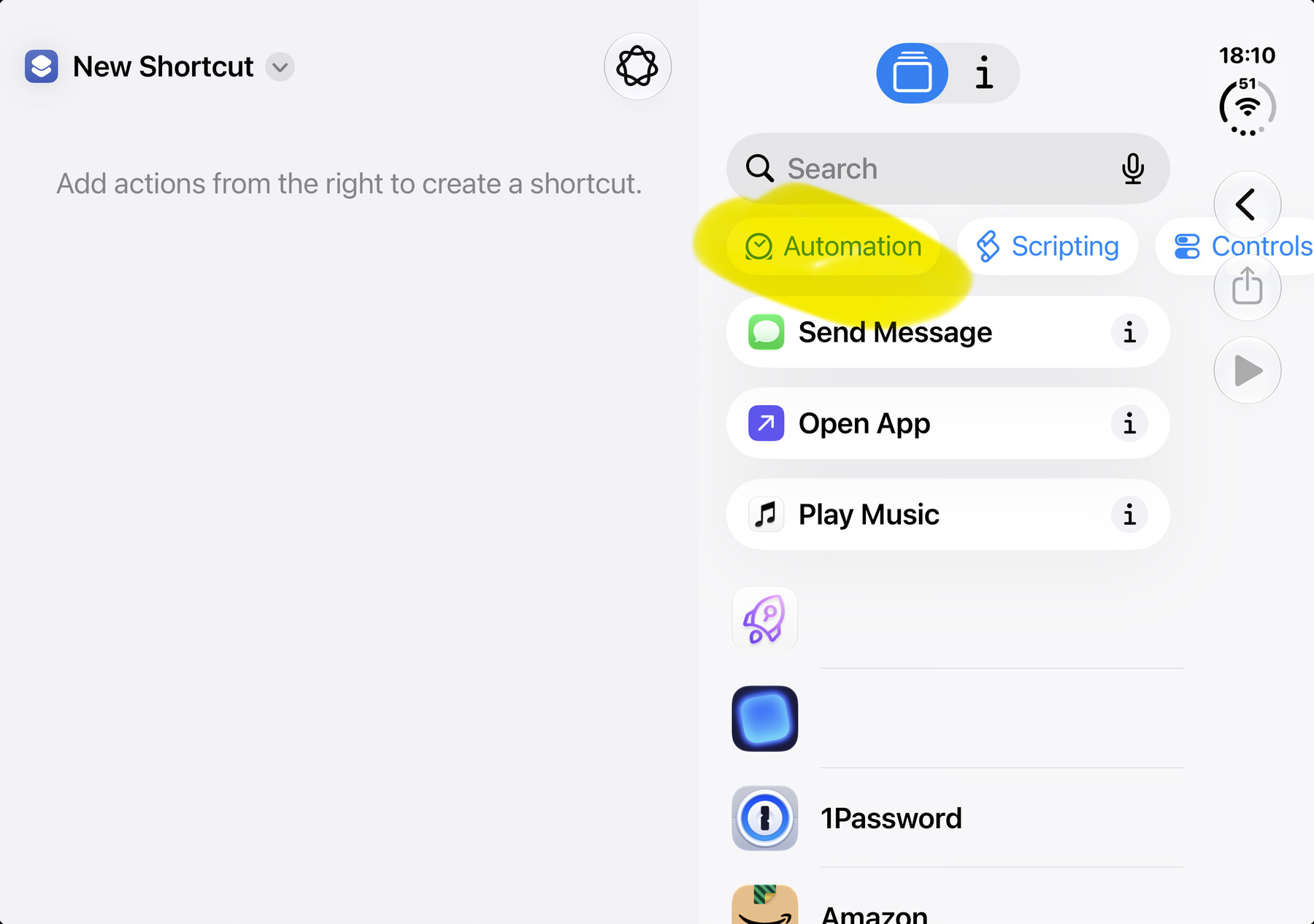
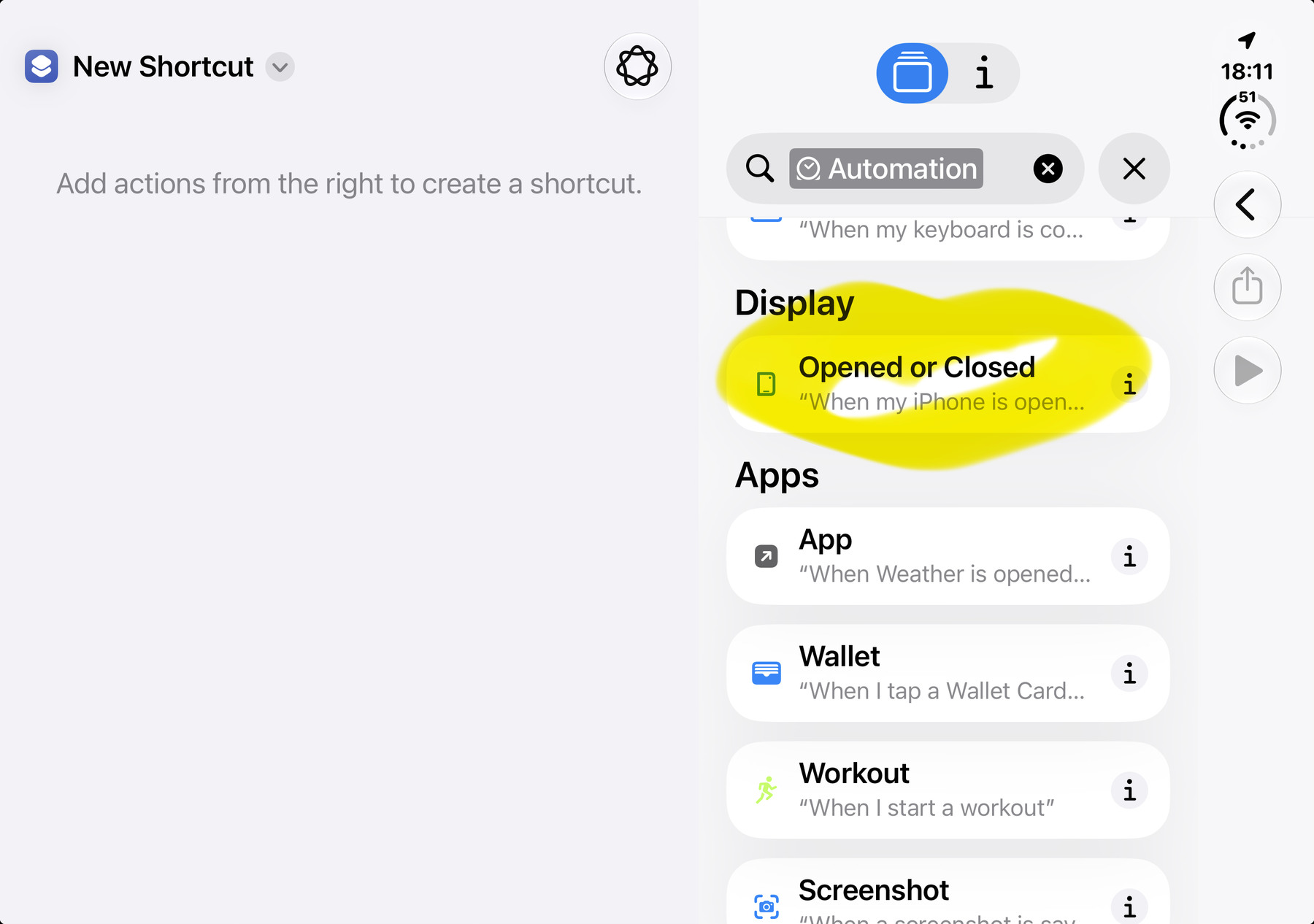
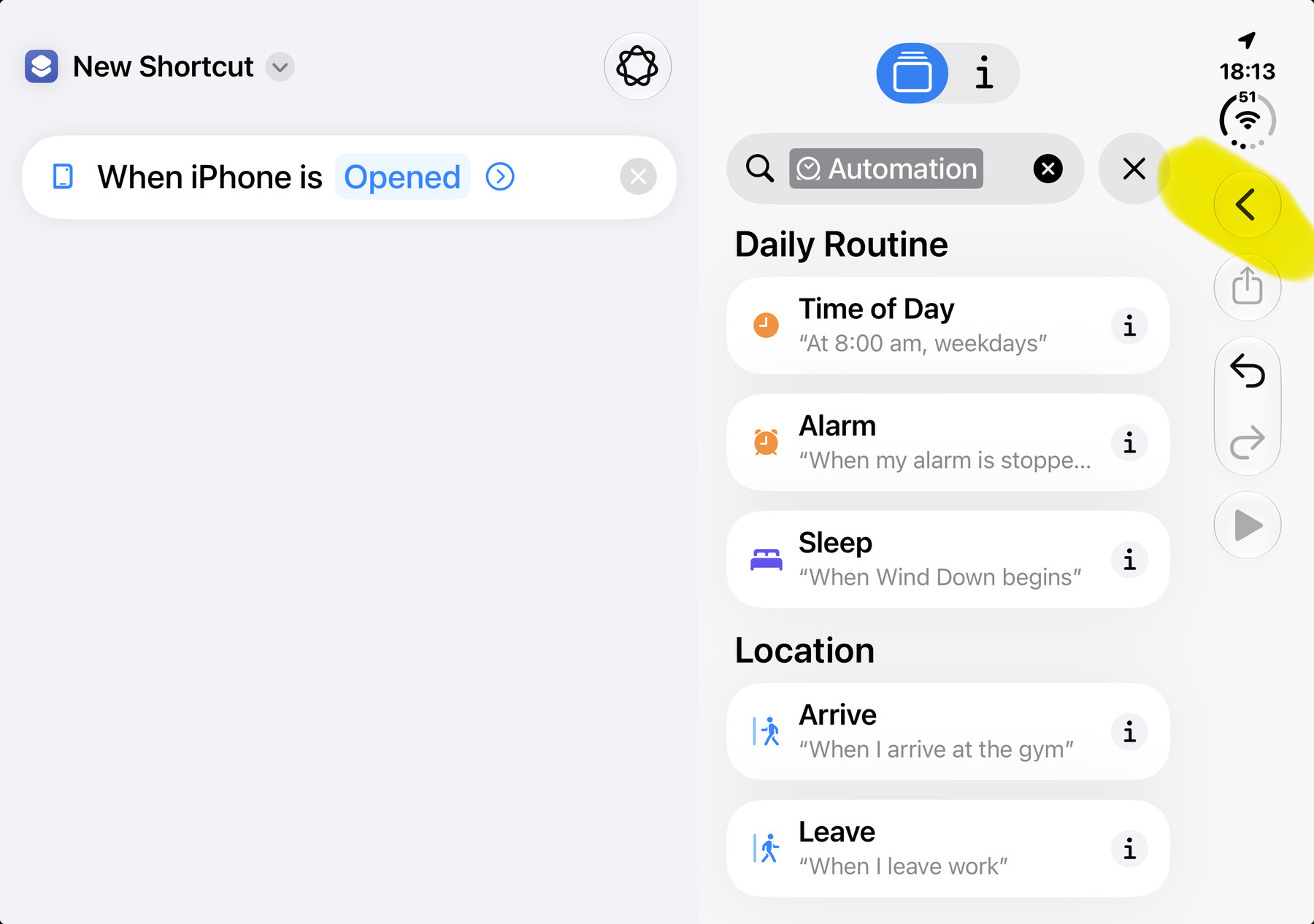
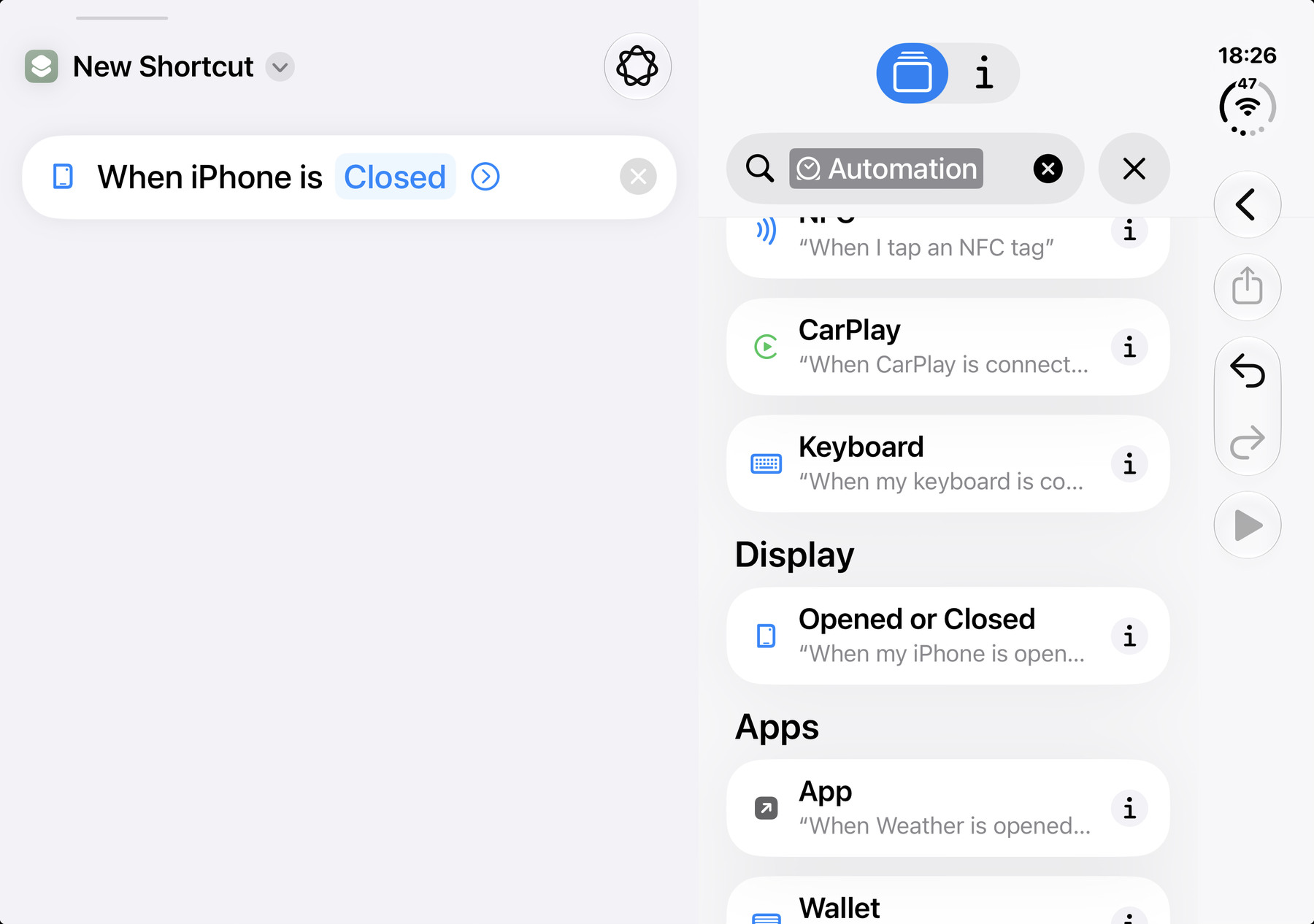
- Choose the trigger. Search for and select the Automation category. Under Display, choose Opened or Closed, then select Opened.
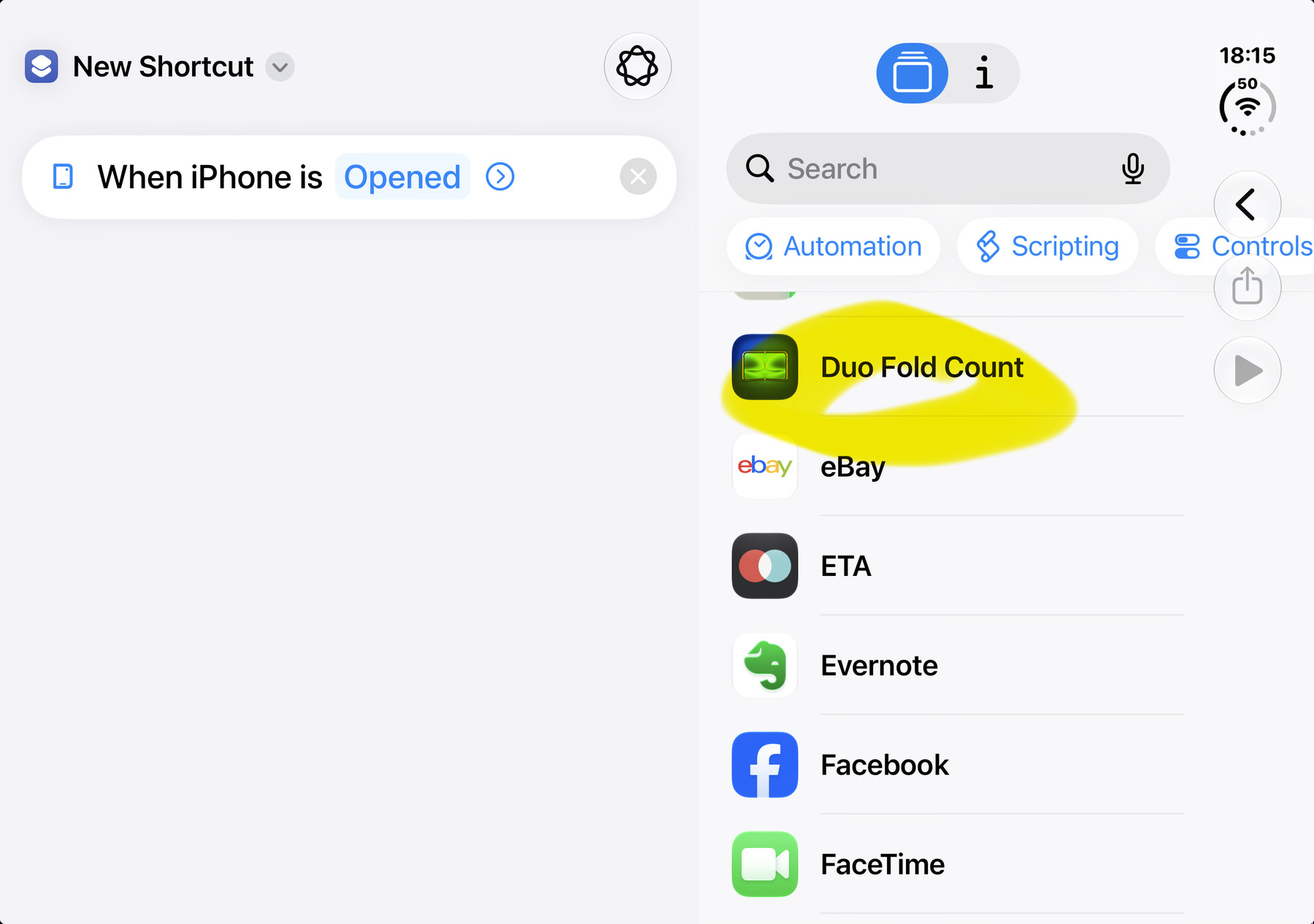
- Choose the app. Select Duo Fold Count.
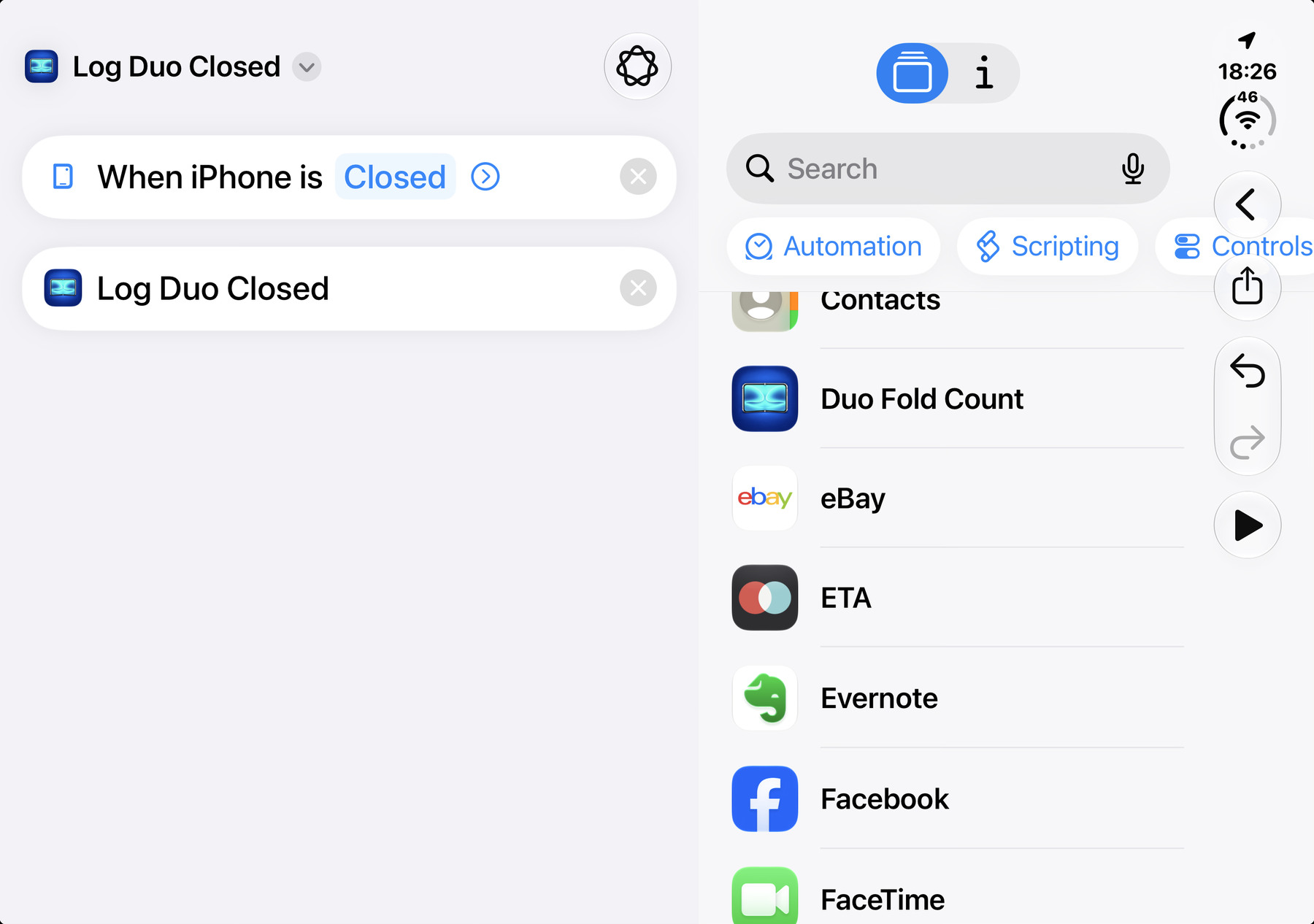
- Add the logging action. Add Log Duo Opened.
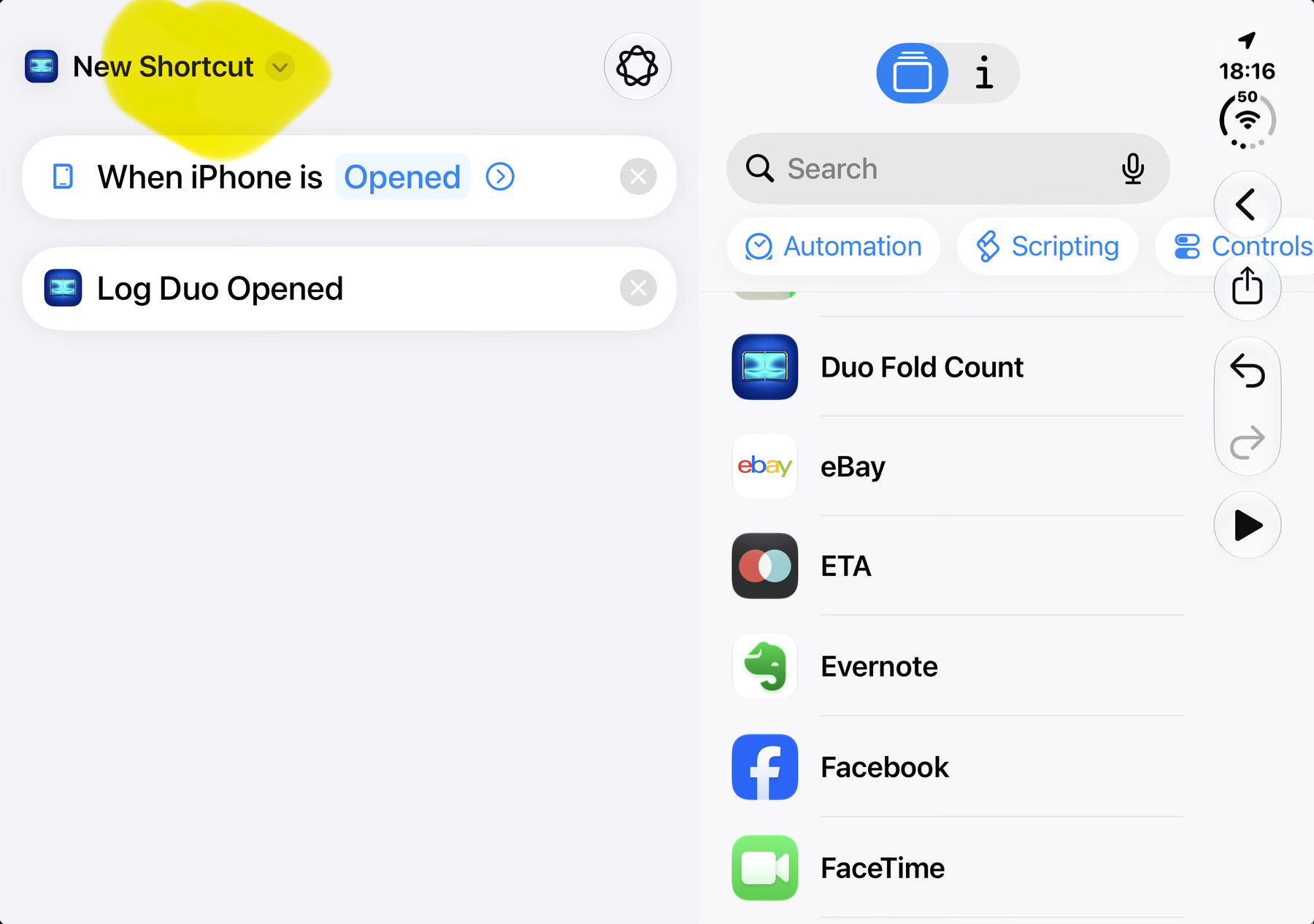
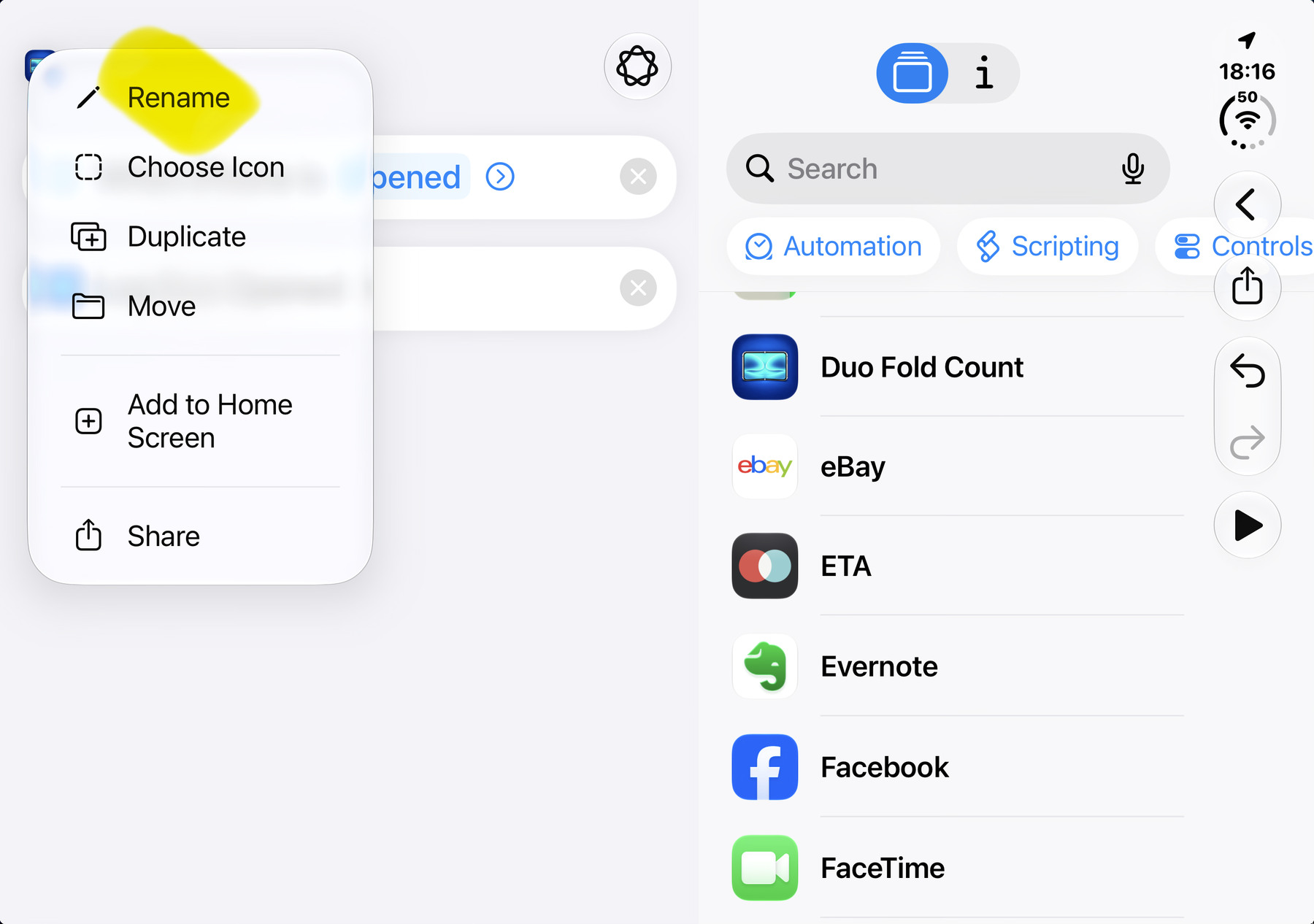
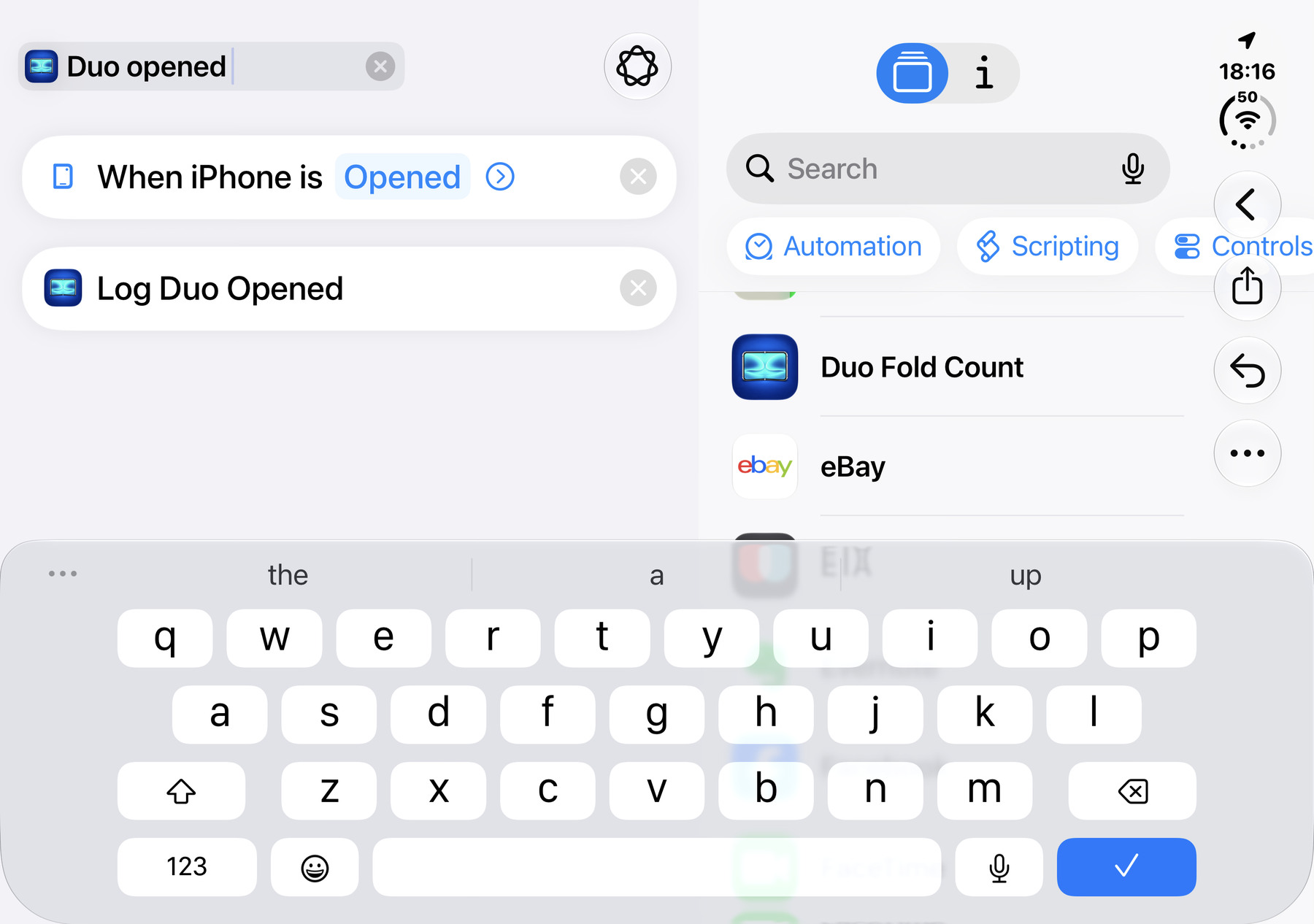
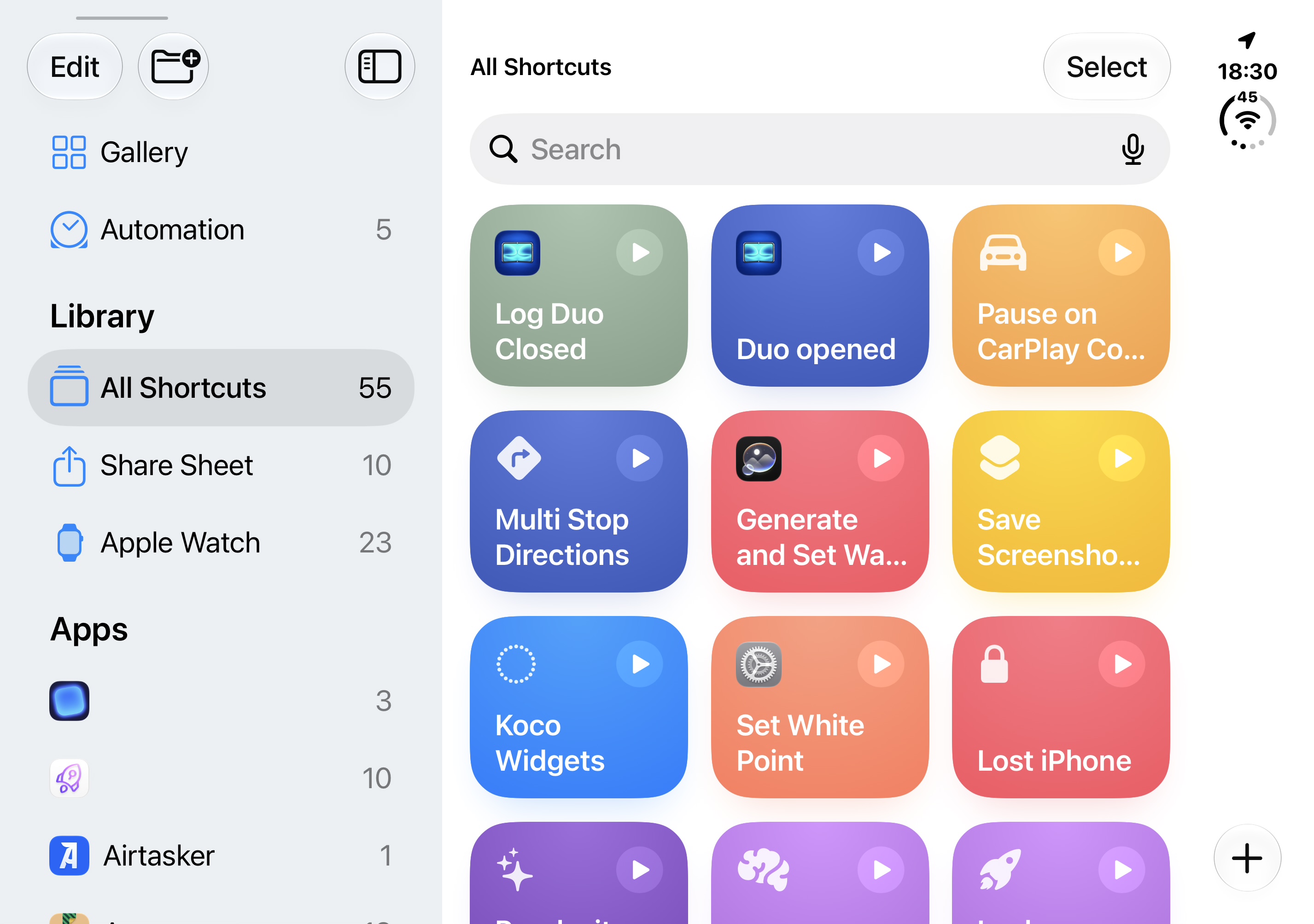
- Name it. Open the shortcut name menu, choose Rename, and enter Duo opened.
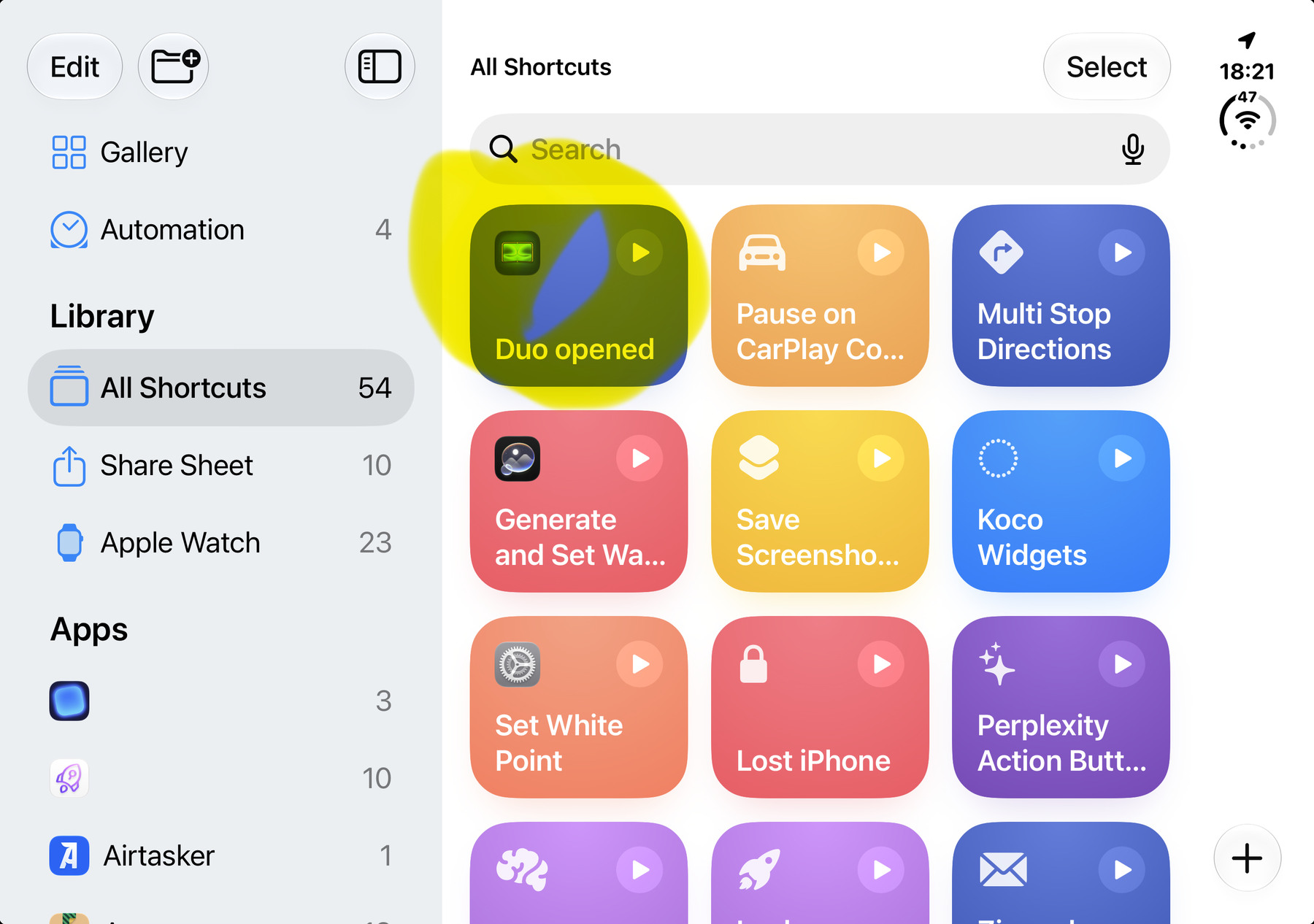
- Save. Finish editing and save the shortcut.
Show the 12 Opened walkthrough screenshots
2. Repeat for “Duo closed”
Create one more shortcut using the same process, but select the Closed trigger, choose Duo Fold Count, add Log Duo Closed, rename it Duo closed, and save.
In short: Closed trigger → Duo Fold Count → Log Duo Closed → rename Duo closed → save.
You can use the Closed screenshots below as a quick reference; the full step-by-step walkthrough above is for Opened.
After setup, leave the tiles alone. Both matching automations run their Log Duo actions silently on their triggers, without opening the app. A manual tile tap only runs it once; it doesn’t enable ongoing counting.
Show the two Closed reference screenshots
Let Shortcuts run automatically
Use these settings if iOS asks how the automation should run or if you want it to work while the Duo is locked.